Joomla Tips And Tricks

In this section you can read Alledia blog posts about Joomla tips and tricks.

Make Your Joomla Search More Useful

The other day I’d been doing some testing on the search features for client’s site and I came up with some interesting results. This website, based around sports, was pulling up results headed “Mambo”, “PHP.net”, “MySQL.com”.

I checked on Alledia.com and the same thing was happening:

search.png

I’d forgotten something really simple … by default Joomla comes with the “Search Newsfeeds”, “Search Weblinks” and “Search Contacts” mambots published. If you never get around to deleting all the newsfeeds and weblinks, they’ll then turn up in the search results.

So, I unpublished those mambots, and also those the called “Search Sections” and “Search Categories”. I figure that people are looking for individual content items rather than general folders on a subject.

A small change, but hopefully it will speed up the search results and also make them more useful.

Read MoreMake Your Joomla Search More Useful

Joomla Statistics – Don’t Turn Your Database Into Another Statistic

During the last couple of weeks a new client has been complaining to us that their site was always running slow and timing out. The problem got so bad that they asked us to move it from their hosting company to ours in the hope that things would improve.

Over the weekend I had the pleasure of moving the site. There was only one problem – it had had a Joomla statistics component running inside it for over a year. The database was, without exaggeration, about twenty-five times the normal size of a Joomla database. It took several minutes to download the tables from PHPMyAdmin and then the fun was just beginning. Actually trying to upload such a huge file left the server hanging every time. The only way to upload the database was to edit it into small sections and run the queries secion by section. 

I can’t guarantee that 100% of the website’s speed problems had been caused by the statistics component but the extra database tables were so large and cumbersome that they undoubtedly caused some drag on the site.

The statistics collected by the component were reasonably useful, particuarly when it came to tracking the actions of individual users, but that benefit was more than outweighed by the performance problems it caused.

Four Hints for Collecting Statistics on Your Joomla Site:

  1. Turn off Joomla’s default statistics package except for "Log Search Strings" (its useful to know what people are searching for).
  2. Don’t use JoomlaStats, BSQ Sitestats or anything else inside of Joomla. Let someone elses’ servers store your mountains of data.
  3. Sign up for Google Analytics and put the code at the bottom of your template, above </body>
  4. Use a hosting company that utilizes CPanel and AWStats. Old and somewhat ugly, AWStats is still a great source of data.

For larger companies there are commercial solutions such as Indextools, but small to medium size sites should be able to do a good job of tracking their visitors and conversions with Google Analytics and AWStats, without spending a cent and without turning their database into an 500 hundred pound elephant.

Read MoreJoomla Statistics – Don’t Turn Your Database Into Another Statistic

The 5 Best Joomla Tutorials Ever!

Yesterday, I read a tutorial by Copyblogger, explaining how to write attention-grabbing blog headlines. So excuse today’s exclamation mark and over enthusiasm in the headline – I’m still practising the secret of better blogging (#2)! Before your patience runs out, here’s a list of our favorite Joomla tutorials showing how you can get rid of frustration once and for all (#5) and how you can build a Joomla website you can be proud of (#9):


  1. Joomlart.com’s Understanding Joomla / Mambo CSS in 5 minutes. This is good enough to be part of the official documentation. I often give this to designers wanting to learn more about Joomla or clients who want to learn how to modify there own site. Its graphical, its comprehensive, its great.
  2. Barrie North’s Joomla Template Tutorial. The original and best guide to building a Joomla template from scratch. Its recently been updated for Joomla 1.5 (zip file). Start knowing nothing about Joomla and
  3. JoomlaTutorials.com. This is a new and improved variation on the Flash tutorials format initially produced by Mambodemo.com. JoomlaTutorials is easier to navigate and less cluttered with ads than its predecessor. They have a large series of clearly explained and useful video tutorials.
  4. Joe Orr’s How to Install Open-SEF. Not the most comprehensive or most flashy, but perhaps the most important tutorial you can read for your Joomla site. Open-SEF is rapidly becoming such a powerful tool that you really need to look into its features and consider using it on your site.
  5. Cory Webb’s HowtoJoomla.net. Not really organized, but this is a great site for browsing through and picking up tips and tricks.


Have we missed any? Contact us via the comments form below and we’ll add them to the list.

Read MoreThe 5 Best Joomla Tutorials Ever!
Group Jive

GroupJive.org – Joomla’s Vital Social Networking Component

Group JiveAm the only one who failed to notice the rebirth of a potentially very, very important Joomla component?

GroupJive.org is a Community Builder add-on that gives:

registered users the capability to create and moderate their own groups. There are currently three types of groups which can be created: Open, Private, and Invite only.

After GroupJive.com slowly faded away last year, the project looked dormant. However, GroupJive.org launched very quietly on December 30th, 2006, and it has the potential to make a huge splash in the Joomla world. Why is this component so useful?

  • It allows users to form and moderate their own groups is an indispsensble part of social networking that has been missing in Joomla up until now. For several of our clients, this has led them to choose Drupal (which has this functionality) over Joomla (which doesn’t).
  • Around two-thirds of the projects we deal with involve some form of social networking. I’d venture to say that figure is similar for most designers working with Joomla. I can’t imagine one of those sites that wouldn’t be improved by the ability for people to freely socialize and form groups.
  • Its 100% free and continues the great work of the folks over at Joomlapolis.com.

The project is still in an Alpha version, but the work so far is promising. You can register and see a demo of the groups by clicking here.

Read MoreGroupJive.org – Joomla’s Vital Social Networking Component

Get a new password with just your email

Two posts today, because I wanted some good news to counteract the problems with Virtuemart mentioned in the post below.

Early this week we found a great little hack, built by benneh over at the Joomla.org forum. It allows people to get a new password without having to remember their username. People nearly always forget their username and so this makes it much more likely that people will return to your site if they no longer have their details.

Read MoreGet a new password with just your email

10 Easy Ways to Professionalise Your Joomla Site

 We’ll begin with 5 ways to make your Joomla site as professional as possible:

  1. Create a new favicon.ico. Yes, the default black Joomla logo is cute, but people bookmarking your site they need to see something that identifies your site rather than Joomla. If you don’t want to design on a 16×16 pixels scale, there are sites that will generate a favicon for you. Then upload it to your images folder.
  2. Make sure you backup your database everyday. We recommend the JomBackup Daily MySQL backup plugin
  3. Don’t cut and paste from Microsoft Word. It may be easy but Word produces some of the worst HTML ever seen by the eyes of man. Cut and paste into a text editor such as Notepad before adding that content to your site.
  4. Make sure you put the Search button in an obvious place. A search of the latest 20 sites on the Joomla forums showcase reveals that more than half don’t have a clearly visible search button.  Low on the left or right hand column are not great places. Try and put it close to the menu so that people’s eyes are naturally drawn to it.
  5. Utilize "Read More". Lots of visitors will never get past your frontpage. Make sure that your homepage is not a long text area and start creating some "tease" text. Articles should not be longer than 3 or 4 sentences, followed by a "Read More…" link.

5 ways to improve your site via your Global Configuration file:

  1. Content >> Unpublish the PDF and Print options. These create duplicate content problems in Google and may hinder your SEO succcess.
  2. Server >> Use Server Defaults. Setting this to 777 or 775 leaves big security holes in your site.
  3. Metadata. Don’t overload here. Keep it to a maximum of 5 description words and 5 keywords. These will appear on every page and you want to allow each page to have its own keywords.
  4. Cache. Turn it on! Your site will run faster. The cache function saves copies of the web page so that users don’t have to load your whole page every time they visit.
  5. Statistics. Turn them off! They’ll slow your site down. Go and get Google Analytics instead.

Read More10 Easy Ways to Professionalise Your Joomla Site
datechange.png

Using Firefox to Help Clients

One of the first things we do when working with new clients is ask them to install Firefox. Originally this we did this because we wanted them to get into the habit of viewing their site in both IE and Firefox when making changes, because those are the most popular browsers.


Recently, Firefox has been the beneficiary of so many great extensions that we’re now starting to use the browser to help interested clients learn more about Search Engine Optimization and even make CSS changes to their sites.


Once Firefox is in place, we also help them to install the Developer Toolbar and the SEO Toolbar.


How can these toolbars help clients learn more about managing and updating their website?


1) The Firefox Developer Toolbar


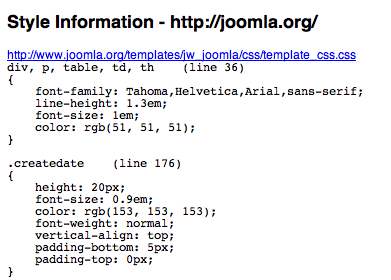
If clients want to make small css changes to their site, they can use the developer toolbar to find the exact file and line number to edit. For example, some visitors to their website might have been complaining that some text was hard to read. So they decide to change the color used to show the date.

 

datechange.png 


In the bad old days, they’d call us up, explain what needed to be done and then wait for us to find a few minutes in a busy schedule to make the change. Now, using the developers toolbar, they can go to CSS >> View Style Information and click on the text. The toolbar shows them exactly which file and which line number they need to change.
 

datecss.png


There are so many other goodies buried in the toolbar that I won’t list them all but here are a few more that we recommend for people wanting to get more hands on with their site:


  • Resize >> 800 x 600. Lots of people get complacent when browsing the internet on a large monitor. This way, clients can make sure that their news articles don’t break the site, for example with images that are too large.
  • Information >> Check Meta Tag Information. A simple way for clients to check all aspects of a page’s metadata.
  • Images >> View Image Information. Quite often, people get confused about whether images are in the images folder, the image/stories folder, in the template folder or somewhere else entirely. This tool allows them to easily find images they want to use.

2) The Firefox SEO Toolbar


We provide a lot of data to our SEO clients but it always helps when they are also able to spend some time looking around and researching their own site and rivals.

The SEO Toolbar makes it really easy. Once installed and activated, it adds large amounts of SEO data to every Google or Yahoo search you make. A search for "Joomla" reveals the following information about Joomla.org


  • Age (registered September 2005)
  • Incoming links (2,680,000 at Yahoo!)
  • Alexa Popularity (#344)
  • Google Cache Date (Yesterday. The more regularly this happens, the more Google trusts the site) 

joomlaresults.png 


Not all clients have the time or inclination to get so hands on with their site, but for those that do, Firefox and Joomla are a great combination.

Read MoreUsing Firefox to Help Clients

Adding RSS Feeds to your Browser Bar with Joomla

A quick little tutorial to show how to add a little RSS button to the browser bar when people visit your site.

  1. Go to Run-Digital.com to get their RSS Feed Manager for Joomla! (Click here to get it). Install it as a component.
  2. Take the url of your RSS feed from the component and go to FeedBurner.com. Sign up and register your feed. They should give you an easy to remember and customize URL. Ours is simply: http://feeds.feedburner.com/alledia
  3. Add the following code to the head of your template:

If you want different RSS Feeds available on each page you will need to copy your template and assign the copies to the right pages unless someone can come up with a clever work-around….

Thanks to Sam over at SiteCoffee.com for tips with this.

On 1.5, you’ll need to turn off the default RSS feeds by going to Menus >> Main Menu >> Parameters (Advanced) >> Show a Feed Link >> No

Read MoreAdding RSS Feeds to your Browser Bar with Joomla

Solution to Suckerfish Menu Sticking in IE7

Since IE7 has come out, a lot of people have noticed that Suckerfish dropdown menus are allergic to it. The principal problem is that once they've dropped down, they refuse to scroll back up again. This affects a lot of Joomla sites using Suckerfish variations and also the Extended Menu module.


The solution is thankfully, simple. If your list menu ID is called "topmenu", you only have to add the following lines of code to your css:


#topmenu li:hover, #topmenu li.hover {
    position:static;
    }


Thanks to Built from Source for the original tip and to Sam from Site Coffee for Joomla implementation. 


Read MoreSolution to Suckerfish Menu Sticking in IE7

Adding Login and Logout Buttons to Joomla

Are you fed up with little square grey boxes saying "login" and then "logout" on your Joomla site. Here's how to liven up your login box.

1) Make 2 little graphics – one saying "login" and one saying "logout". 70 pixels wide and 20 pixels high is a nice size. Upload them to the /images folder as login.gif and logout.gif

2) Go to /language/english.php and replace DEFINE('_BUTTON_LOGIN','Login'); with DEFINE('_BUTTON_LOGIN',''); and also replace DEFINE('_BUTTON_LOGOUT','Logout'); with DEFINE('_BUTTON_LOGOUT','Logout');  This means no text will sit on top of your images.

3) Upload the new mod_login.php to your /modules folder. Click here to download it . If your files are png or jpg instead of login.gif, search the code and update with the new extension.

And you're done! 3 simple steps to a livelier site.

Read MoreAdding Login and Logout Buttons to Joomla

How to Reset a Lost SuperAdmin Password

If you do lose your SuperAdmin password for Joomla, don’t worry because theres an easy way to get it back. Just login to your MySQL database and run this query for

Versions up to Joomla 1.0.12.

UPDATE `jos_users` SET `name` = ‘admin’, `password` = ‘21232f297a57a5a743894a0e4a801fc3’ WHERE `id` =62 LIMIT 1 ;

Versions from Joomla 1.0.13 to 1.0.15

UPDATE `jos_users` SET `name` = ‘admin’, `password` = ‘af9083d4b82dbc0745b124db3b3cf15d:M0WuLowO4rtRTddG’ WHERE `id` =62 LIMIT 1 ;

Your username will now be admin and your password will be admin also.

If you’re running an older version of Joomla or Mambo, you might need to change jos_users to mos_users.

If you’d like to change your password to something other than admin, go to http://www.allhype.co.uk and you can encrypt your password using MD5 – the same system Joomla uses.

Read MoreHow to Reset a Lost SuperAdmin Password

How to use PunLA

Image

Some quick tips and tricks to get you started with the PunLA forum:

  1. PunLa installs like any other component. Simply click and upload.
  2. Login as Super-Administrator and the admin options will appear at the top of the forum.
  3. Make sure you have the correct version – PunLA (for Joomla) or PunBO (for Mambo).
  4. Only seems to work with localhost database currently.
  5. Make sure that everyone registering with your site uses the PunLA sign-up module. Unpublish the standard login module.
  6. The forum has a very clever skinning option here, although PunLA doesn’t yet guarantee that styles other than Vershire will work.
  7. Futher support for the component is provided at: http://www.punla.profbh.net.
Read MoreHow to use PunLA